Managing Configuration Comments on IOS XR
Overview
Introduction
Recently, I configured an ASR9K from scratch using configuration lines from another device. Unlike IOS XE, IOS XR allows comments to be included directly alongside configuration commands. In IOS XE, comments cannot be saved within the running configuration. Using the ! character, comments are not stored in NVRAM or in the active configuration file, and do not appear when executing show running-config command. The situation is different with IOS XR. On this platform, it is possible to include comments directly within the configuration. These comments are stored together with the rest of the configuration, making them visible in the output of commands such as show running-config.
How to Insert a Comment in IOS XR
To insert a comment in the configuration, use the ! character before committing the changes. The comment is associated with the configuration command that follows. A simple example is shown below, based on the following topology.
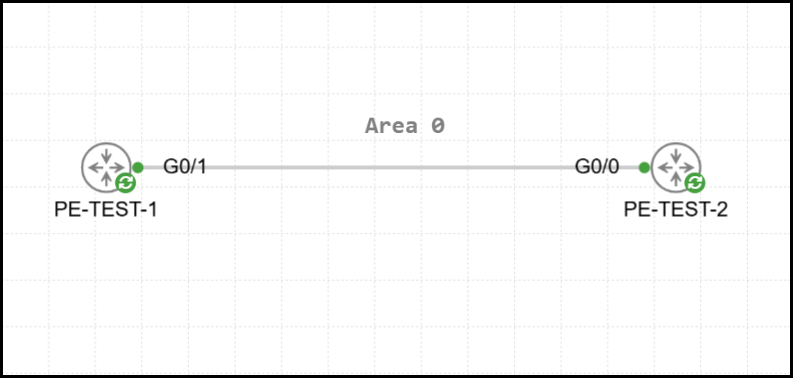
A simple OSPF adjacency in Area 0 has been configured between the two PEs. PE-TEST-1 advertises the network 1.1.1.1/32 (which corresponds to the IP address assigned to the local Loopback 0 interface) to PE-TEST-2. Below is the configuration of PE-TEST-1.
RP/0/RP0/CPU0:PE-TEST-1#show running-config router ospf 1
Sun Jan  4 07:33:57.059 UTC
router ospf 1
 area 0
  interface Loopback0
   passive enable
  !
  interface GigabitEthernet0/0/0/1
   bfd minimum-interval 50
   bfd fast-detect
   bfd multiplier 3
   network point-to-point
  !
 !
!
Below is the configuration of PE-TEST-2.
RP/0/RP0/CPU0:PE-TEST-2#show running-config router ospf 1
Sun Jan  4 07:34:17.149 UTC
router ospf 1
 area 0
  interface GigabitEthernet0/0/0/0
   bfd minimum-interval 50
   bfd fast-detect
   bfd multiplier 3
   network point-to-point
  !
 !
!
The node PE-TEST-2 correctly receives the advertisement for the network 1.1.1.1/32. The network is advertised by PE-TEST-1 with an OSPF cost of 1.
RP/0/RP0/CPU0:PE-TEST-2#show ip ospf 1 database router adv-router 10.0.0.1
Sun Jan  4 07:35:01.712 UTC


            OSPF Router with ID (10.0.0.2) (Process ID 1)

                Router Link States (Area 0)

  Routing Bit Set on this LSA
  LS age: 29
  Options: (No TOS-capability, DC)
  LS Type: Router Links
  Link State ID: 10.0.0.1
  Advertising Router: 10.0.0.1
  LS Seq Number: 80000011
  Checksum: 0xab03
  Length: 60
   Number of Links: 3

    Link connected to: a Stub Network
     (Link ID) Network/subnet number: 1.1.1.1
     (Link Data) Network Mask: 255.255.255.255
      Number of TOS metrics: 0
       TOS 0 Metrics: 1

    [OUTPUT OMITTED]
Now, the OSPF cost of the Loopback 0 interface on PE-TEST-1 is modified, and a comment is added. The following configuration is then applied.
RP/0/RP0/CPU0:PE-TEST-1(config-ospf)#area 0
RP/0/RP0/CPU0:PE-TEST-1(config-ospf-ar)#interface loopback 0
RP/0/RP0/CPU0:PE-TEST-1(config-ospf-ar-if)#! BACKUP PATH - COST 450
RP/0/RP0/CPU0:PE-TEST-1(config-ospf-ar-if)#cost 450
RP/0/RP0/CPU0:PE-TEST-1(config-ospf-ar-if)#commit
Sun Jan  4 07:36:13.761 UTC
When displaying the OSPF configuration, the comment is now shown. It is important to emphasize that the comment is associated with the configuration command that follows. In other words, the configuration command passive enable is entirely independent of the comment that was just added.
RP/0/RP0/CPU0:PE-TEST-1#show running-config router ospf 1
Sun Jan  4 07:37:16.152 UTC
router ospf 1
 area 0
  interface Loopback0
   ! BACKUP PATH - COST 450
   cost 450
   passive enable
  !
  interface GigabitEthernet0/0/0/1
   bfd minimum-interval 50
   bfd fast-detect
   bfd multiplier 3
   cost 13
   network point-to-point
  !
 !
!
The OSPF cost update for the 1.1.1.1/32 network was subsequently received by PE-TEST-2.
RP/0/RP0/CPU0:PE-TEST-2#show ip ospf 1 database router adv-router 10.0.0.1
Sun Jan  4 07:38:45.732 UTC


            OSPF Router with ID (10.0.0.2) (Process ID 1)

                Router Link States (Area 0)

  Routing Bit Set on this LSA
  LS age: 26
  Options: (No TOS-capability, DC)
  LS Type: Router Links
  Link State ID: 10.0.0.1
  Advertising Router: 10.0.0.1
  LS Seq Number: 80000012
  Checksum: 0x5a90
  Length: 60
   Number of Links: 3

    Link connected to: a Stub Network
     (Link ID) Network/subnet number: 1.1.1.1
     (Link Data) Network Mask: 255.255.255.255
      Number of TOS metrics: 0
       TOS 0 Metrics: 450

    [OUTPUT OMITTED]
How to Modify a Comment in IOS XR
Once a comment has been associated with a command, it can also be updated. Two approaches are available to do this:
- Enter the updated comment and then reapply the same command with the same configuration parameters.
- Enter the updated comment and then apply the same command with different configuration parameters.
For example, in the first scenario, the comment associated with the OSPF cost command on the Loopback 0 interface of PE-TEST-1 is updated while keeping the same cost value. The sequence of commands to achieve this is shown below.
RP/0/RP0/CPU0:PE-TEST-1(config-ospf)#area 0
RP/0/RP0/CPU0:PE-TEST-1(config-ospf-ar)#interface loopback 0
RP/0/RP0/CPU0:PE-TEST-1(config-ospf-ar-if)#! NEW COMMENT - BACKUP PATH - 450
RP/0/RP0/CPU0:PE-TEST-1(config-ospf-ar-if)#cost 450
RP/0/RP0/CPU0:PE-TEST-1(config-ospf-ar-if)#commit
Sun Jan  4 07:40:11.132 UTC
By verifying the configuration using the standard command, it can be confirmed that the comment has been successfully updated. Additionally, packet capture analysis confirmed that PE-TEST-1 did not send any OSPF LSU messages to PE-TEST-2.
RP/0/RP0/CPU0:PE-TEST-1#show running-config | i COMMENT
Sun Jan  4 07:41:01.261 UTC
   ! NEW COMMENT - BACKUP PATH - 450
In the second scenario, after updating the comment, the OSPF cost of the interface is modified from 450 to 150, and the resulting behavior is observed.
RP/0/RP0/CPU0:PE-TEST-1(config-ospf)#area 0
RP/0/RP0/CPU0:PE-TEST-1(config-ospf-ar)#interface loopback 0
RP/0/RP0/CPU0:PE-TEST-1(config-ospf-ar-if)#! NEW VALUE - BACKUP PATH - 150
RP/0/RP0/CPU0:PE-TEST-1(config-ospf-ar-if)#cost 150
RP/0/RP0/CPU0:PE-TEST-1(config-ospf-ar-if)#commit
Sun Jan  4 07:42:43.721 UTC
Checking the configuration again with the standard command confirms that the comment has been successfully updated.
RP/0/RP0/CPU0:PE-TEST-1#show running-config | i NEW
Sun Jan  4 07:43:23.411 UTC
   ! NEW VALUE - BACKUP PATH - 150
How to Remove a Comment in IOS XR
To remove a comment from PE-TEST-1, the specific clear comment command must be used. After executing it, the configuration command associated with the comment should be re-entered. The example below shows how to remove the comment ! NEW VALUE - BACKUP PATH - 150.
RP/0/RP0/CPU0:PE-TEST-1(config-ospf-ar-if)#clear comment
RP/0/RP0/CPU0:PE-TEST-1(config-ospf-ar-if)#cost 150
RP/0/RP0/CPU0:PE-TEST-1(config-ospf-ar-if)#commit
Sun Jan  4 07:45:13.816 UTC
As shown below, the comment was successfully removed. Additionally, packet capture analysis confirmed that PE-TEST-1 did not send any OSPF LSU messages to PE-TEST-2.
RP/0/RP0/CPU0:PE-TEST-1#show running-config router ospf 1 area 0 interface loopback 0
Sun Jan  4 07:48:42.113 UTC
router ospf 1
 area 0
  interface Loopback0
   cost 150
   passive enable
  !
 !
!
How to Insert a Comment within a Commit in IOS XR
So far, it has been shown how comments can be added, modified, and removed from the configuration. In IOS XR, comments can also be included within a commit (up to 60 characters). This functionality, similar to Version Control Systems (VCS), is useful for understanding which changes are included in a particular commit.
The following commands illustrate how to reconfigure the interface cost while including a descriptive comment with the commit.
RP/0/RP0/CPU0:PE-TEST-1(config-ospf-ar-if)#cost 450
RP/0/RP0/CPU0:PE-TEST-1(config-ospf-ar-if)#commit comment ?
  LINE  Comment for this commit (Max 60 characters)
RP/0/RP0/CPU0:PE-TEST-1(config-ospf-ar-if)#commit comment Link Cost Updated
Sun Jan  4 07:51:21.533 UTC
The list of all commits (up to a maximum of 36) can be displayed using the show configuration commit list command.
RP/0/RP0/CPU0:PE-TEST-1#show configuration commit list
Sun Jan  4 07:52:16.546 UTC
SNo. Label/ID              User      Line                Client      Time Stamp
~~~~ ~~~~~~~~              ~~~~      ~~~~                ~~~~~~      ~~~~~~~~~~
1    1000000036            admin     con0_RP0_CPU0       CLI         Sun Jan  4 07:51:21 2026
2    1000000035            admin     con0_RP0_CPU0       CLI         Sun Jan  4 07:45:13 2026
[OUTPUT OMITTED]
To view the comment, the show configuration commit list detail command displays the details of each commit.
RP/0/RP0/CPU0:PE-TEST-1#show configuration commit list detail
Sun Jan  4 07:53:45.823 UTC

   1) CommitId: 1000000036                 Label: NONE
      UserId:   admin                      Line:  con0_RP0_CPU0
      Client:   CLI                        Time:  Sun Jan  4 07:51:21 2026
      Comment:  Link Cost Updated

   2) CommitId: 1000000035                 Label: NONE
      UserId:   admin                      Line:  con0_RP0_CPU0
      Client:   CLI                        Time:  Sun Jan  4 07:45:13 2026
      Comment:  NONE
[OUTPUT OMITTED]
In the most recent commit, the Comment field displays the value that was previously entered.
Takeaways
During the configuration of a specific parameter, it may be necessary or useful to include a comment to provide additional details for other network administrators accessing the device. Native commands do not always allow comments to be stored within the configuration. In such cases, the ! keyword can be used.
I hope this post has been helpful. If you have any additional information to share, feel free to reach out via social media. See you in the next one! 🙂